
Hands-on Retrieval Augmented Generation - 1st Part: Document Indexing
A walk through a production RAG system deployed at SAP. You'll learn how to design your application based on your user problems and make a product that goes beyond POC.

Retrieval Augmented Generation has become the first application for Generative AI in enterprise. With most data stored in documents (reports, slide decks, shared docx files, etc.), building a chatbot capable of interacting with this knowledge base has become the flagship of most AI initiatives in corporations.
Yet, most projects are stuck at the POC stage. The reasons: untrusted AI assistant responses, outdated information, and the impossibility of tracing back sources.
RAG systems have become products in themselves and require production-level development to work. They should start with a design that matches your end-users’ expectations.
In this series of articles, I’ll share how to build a robust RAG application from scratch. To illustrate the process, I’ll use as an example a project I handled for SAP that is used today over Microsoft Copilot.
In this article, we’ll deal with the Document Indexing pipeline.
Context
Our end-users are part of the Global Communication team at SAP. Their mission is to write content on internal and external platforms related to SAP news.
Information comes from various sources: slide decks, reports, internal notes, etc. To manage all these documents, they use SharePoint and its features. One of these is document tagging, which they use as custom metadata, such as the document owners, the period of validity in days, or the category.
But managing all this information proved to be hard for the Global Communication team:
Document responsibilities are shared across sub-teams, meaning it’s impossible for an individual to know all documents
Information evolves quickly. New documents today can be outdated the next day
Newcomer onboarding is hard because of the quantity of information
And the list goes on.
However, this is a perfect usecase for an AI Assistant, capable of returning the right information to a user query.
Together, we’ll design the document indexing pipeline to keep the assistant knowledge base updated and provide fresh data to our users.
Design
Let’s start by understanding the usage, the data, and how we should build the Document Indexing pipeline to provide the best experience for our users.
Usage
We develop a chatbot interface, but not only.
Users should be able to tell from which documents the assistant response comes from and quicly access the document for fast-check. Therefore, we need to collect the filename along with the URL that opens the document directly from the UI.
In addition to showing the document citation, we need to display its metadata as well. This will help our users quicly assess if a document is outdated or communicate with the team to take decisions. Our AI assistant should also be able to provide information about those custom fields, such as “Who’s responsible for this document?”, or “Which documents will expire soon?”…
We’ll also collect basic information such as the date of creation, last update that can be useful for temporal queries: “What was the company strategy in 2024?”.
Data
Document are various. We can find PowerPoint presentation, containing images and tables; quaterly reports published in Word documents, and official announcments in PDF. Those documents contain tables and graphs that might interests.
However, the content is quite regular, mainly news and reports. Therefore, it will not be necessary to perform granular indexing on pages.
UI
Not only should the assistant be able to answer (almost) any query, but it might be interesting for our users to have more details on the screen. First, we add the sources the assistant used to answer the user, with the possibility to open the document in a new tab.
Second, we’ll show the document metadata, which will be useful for taking action on. For example, a document can be set as outdated by the user, either on the document storage level or directly from the UI.
Pipeline & Scheduling
Even if the document base evolves quite quickly (addition, update or archived), it should be appropriate to schedule our document indexing pipeline to run once a day. If necessary, we can increase the frequency based on our initial user feedbacks.
To avoid processing the same documents, or worse, skewing the database with duplicates, we will set up an update step to compare incoming documents with indexed ones and take the right actions.
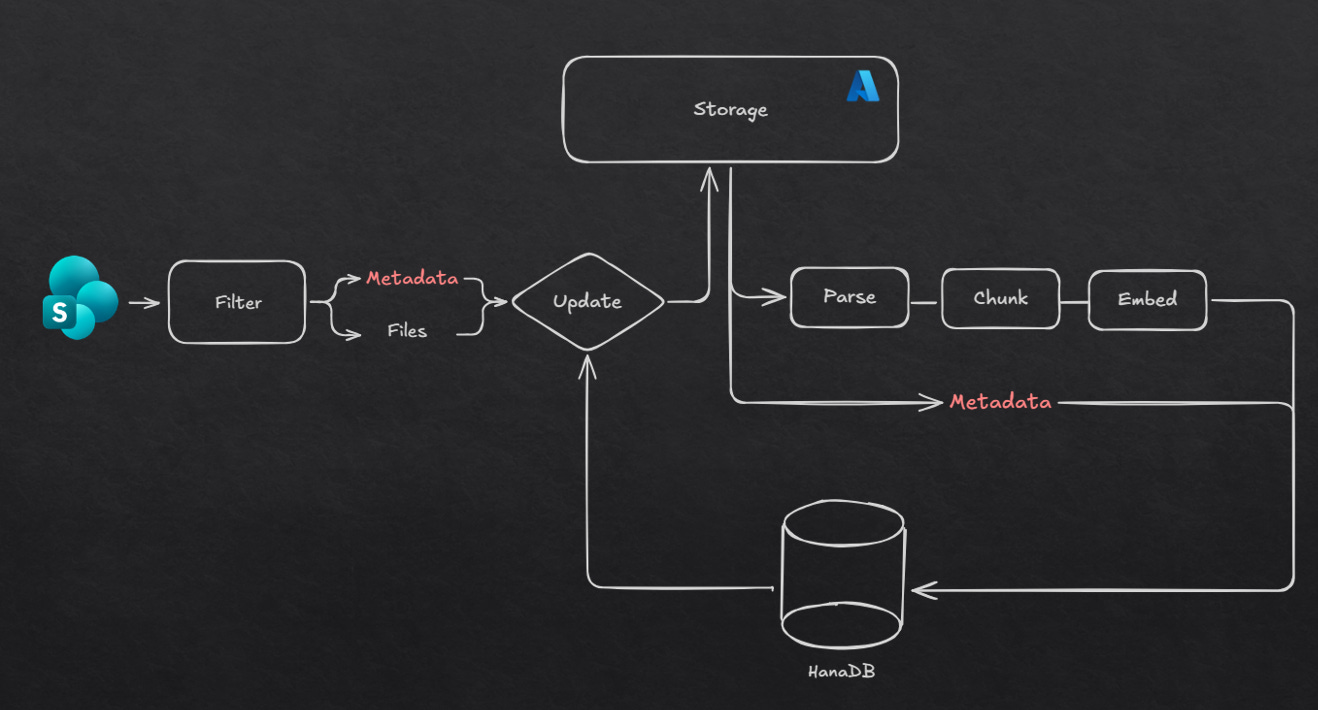
To ease the pipeline debugging, we’ll split it into two steps:
Documents and metadata will be pulled from SharePoint before being compared with the database. New documents will be stored in blob storage along with their metadata in Azure Data Lake (ADLS), updates applied to the database, and archived documents tagged as outdated.
Then, new documents that passed the initial step are pulled from ADLS. Files are parsed, chunked, and embedded before being indexed in the vector database along with the metadata. Filenames are also indexed to enable filename search during the retrieval part.
Database schemas
We use the database developed by SAP: HanaDB, which is quite similar to Postgres.
We define 4 tables:
Documents: store each document metadata and its location in Sharepoint
Chunks: document content splitted into chunks
Embeddings: each chunk its encoding
Filename_Embeddings: filename indexing to enable filename search during the retrieval
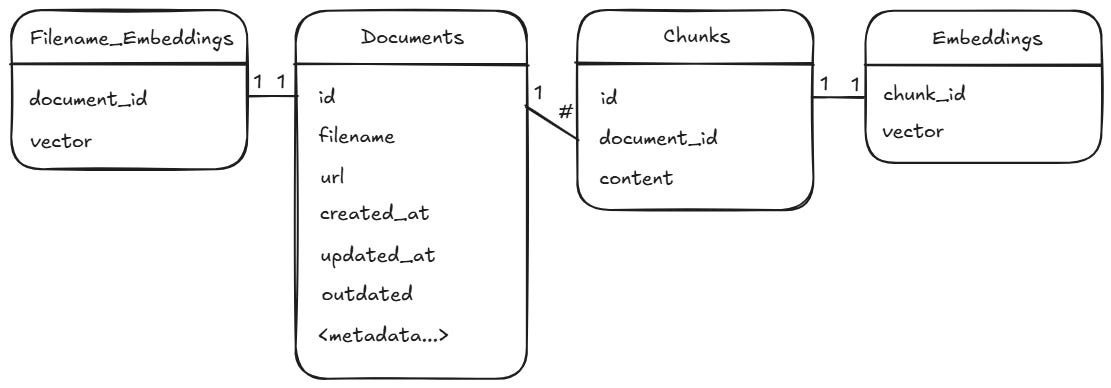
Using a relational database to index data along with vectors presents many advantages:
The tech stack remains simple and easily manageable,
Complex queries can be performed using SQL, a language widely known,
Tables can be changed with migration, making it no different from regular good software engineering practices.
Now we explained how our document indexing pipeline should look like, and what problem it should fix, we can finally start coding!
The code
To structure of our pipeline, we’ll use the Clean Architecture principles. This will allow component reusability, testabilty, and maintainability. For the pipeline platform, we choose Databricks with Databricks Asset Bundles.
This article will not treat those 2 topics, but if you’re interested, check my previous article where I go in details into both concepts.

Sharepoint to ADLS
We start with the first step: transfering documents and metadata from Sharepoint to ADLS.
To communicate with Sharepoint, we use the Office365 Python SDK, which comes with all the features we need to search for documents, pull their metadata, and download the files. The offcial Github repository contains many examples, go check them out.
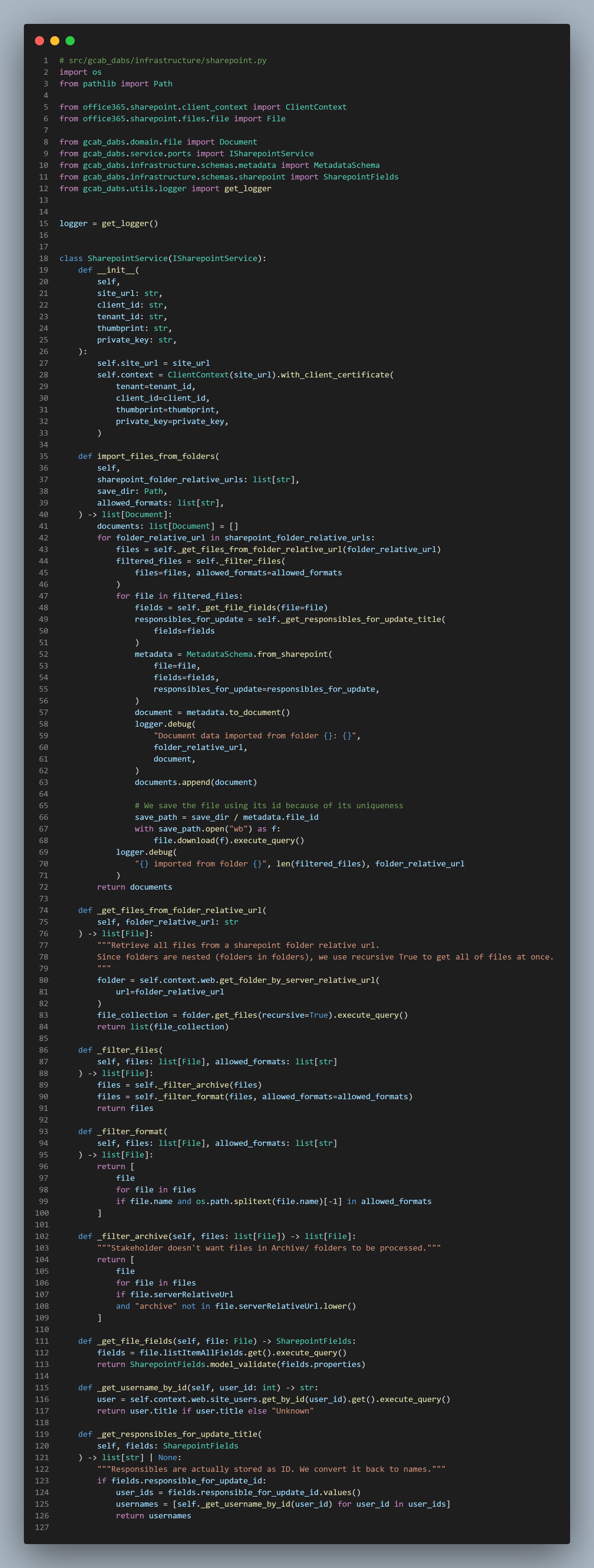
In this code, we:
Iterate over Sharepoint folders as listed by our stakeholders,
Pull
Filesobjects from Sharepoint, containing each document metadata and methods,Filter all files that aren’t used, such as ones located in Archive folders,
Extract the metadata from each
File.We use Pydantic models to validate and preprocess incoming data. This prevents any obscur errors to happen down the pipeline,Download all filtered files into a local directory before exporting them later on,
Return the list
[Document]of the filtered files, that will be used for comparison with the database.
Pydantic has become essential in Data Engineering for ingesting incoming data in a safe manner. For instance, naming conventions change between Python and Sharepoint objects. Pydantic can help validate and reshape elements to be easily processable in the pipeline.
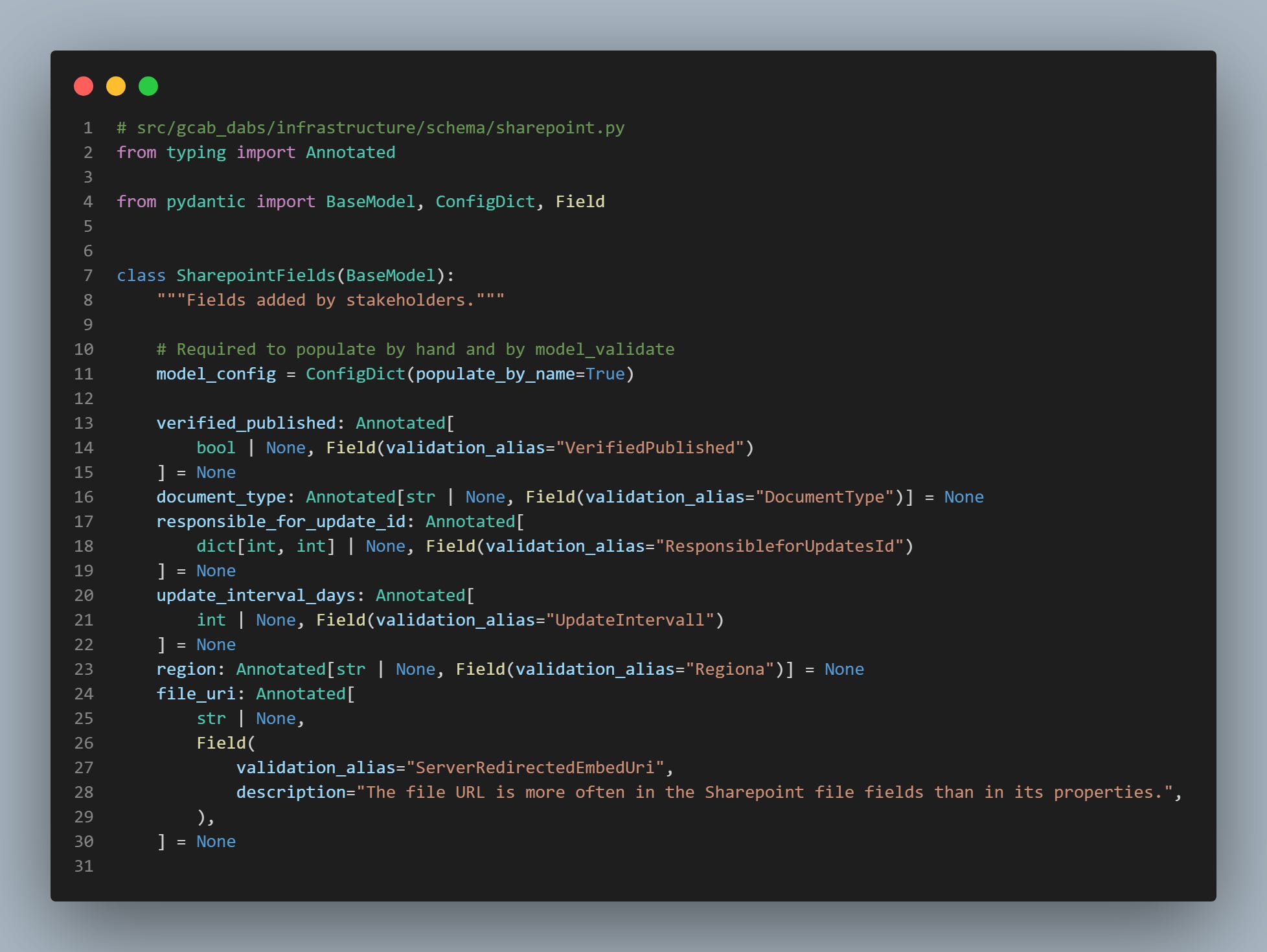
As you may have noticed, what our SharePoint adapter returns is a custom Python object we created as a Domain entity. This object, defining the document we're dealing with, is used across our pipelines to perform the document indexing.
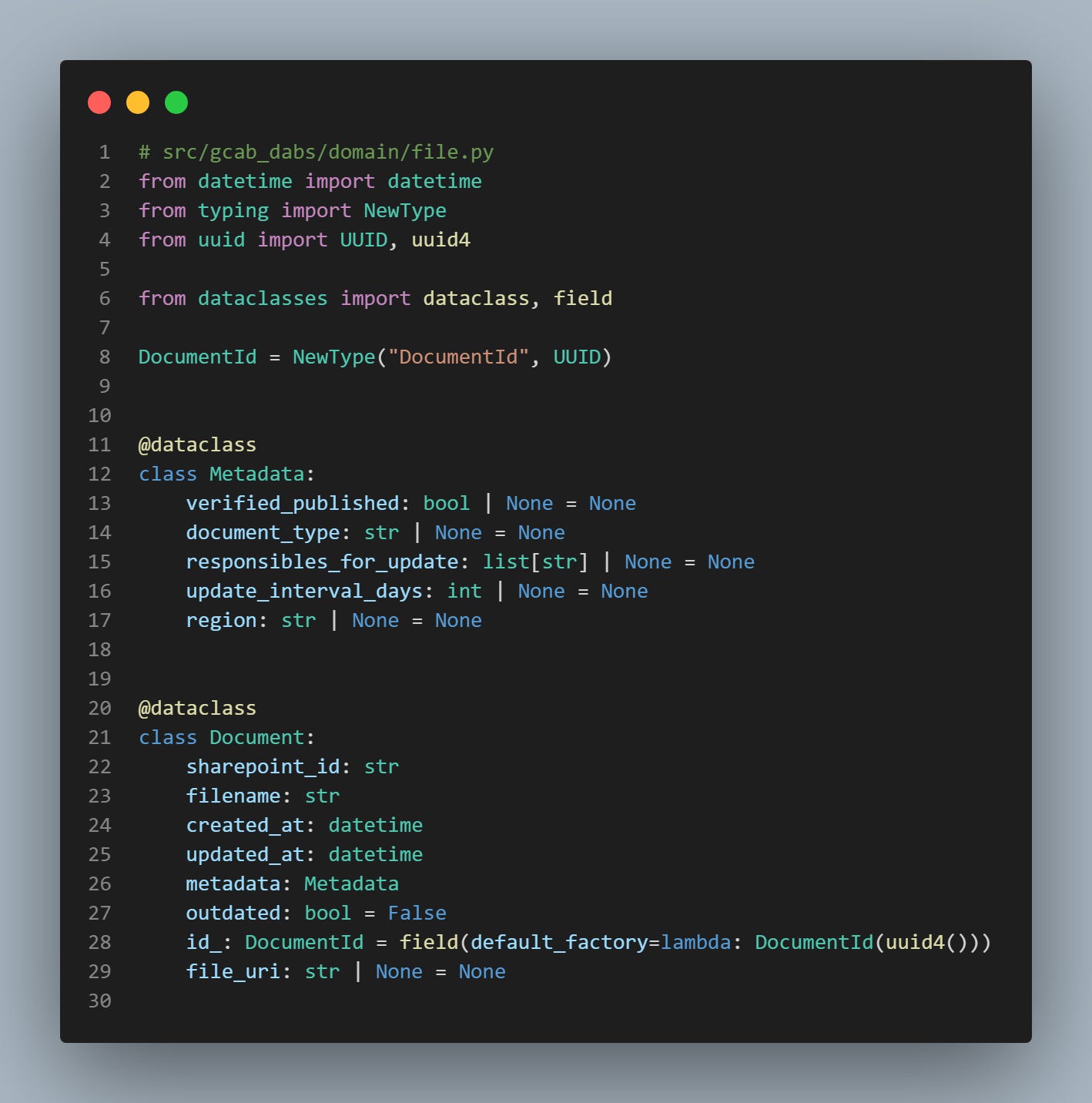
You can learn more about this practice in a previous article:

Documents pulled from Sharepoint are then compared with the ones previously indexed. This ensure a document is not processed twice, which could lead to duplications and could skew the database.
We might face 3 possibilities when documents are compared to the database:
The document pulled from Sharepoint is not present in the database, meaning the document is new → the document continues in the indexing process,
The document pulled from Sharepoint saw its metadata being modified → the database is updated, and the document doesn’t continue in the process,
A document from the database is not longer present in Sharepoint, meaning the document was either archived or deleted → the document in the database is deleted.
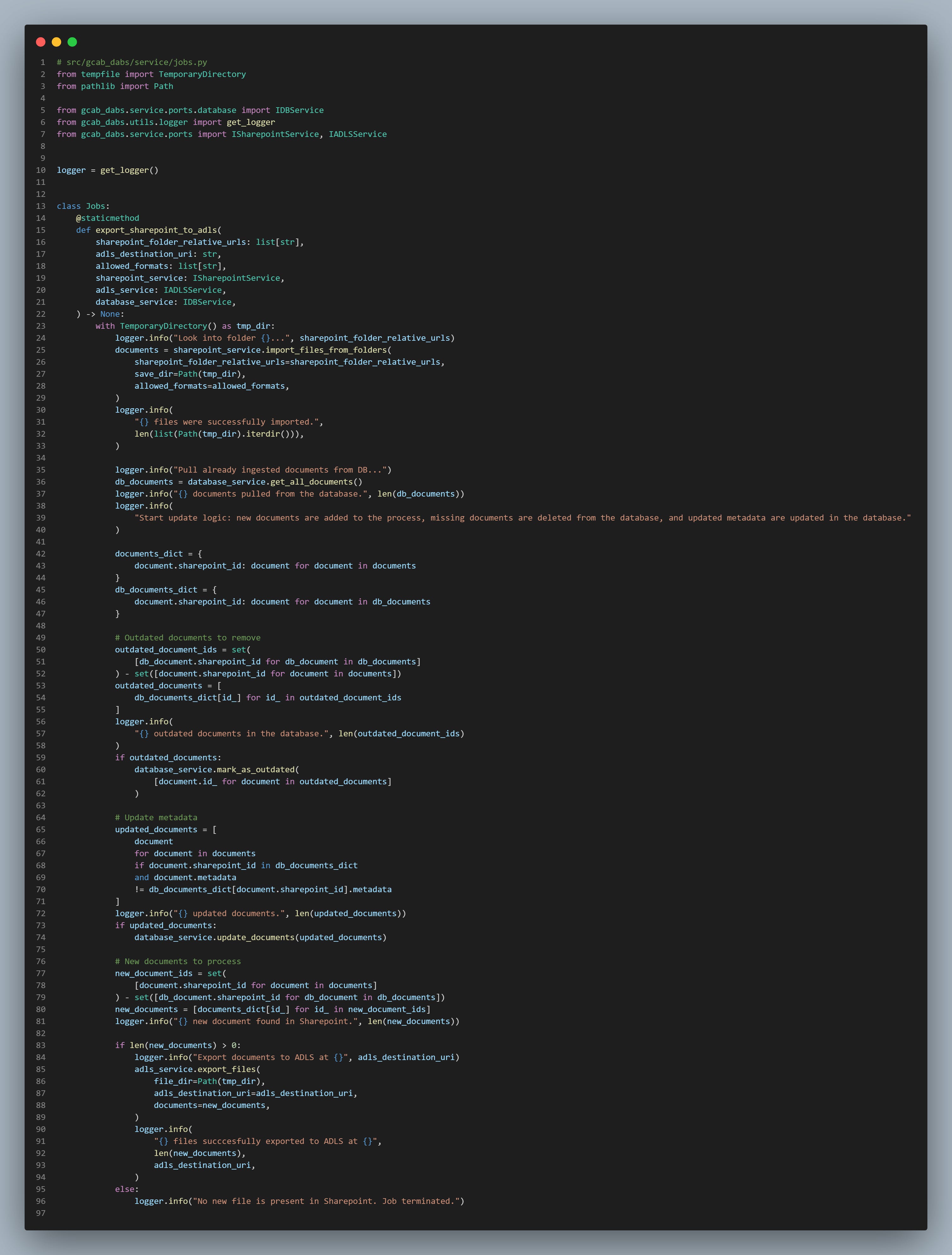
Finally, the last step is to export new documents to ADLS. But this article is already too long, so we'll pass on that. Feel free to leave a comment if you want to know the nitty-gritty details.
ADLS to Database
Once all new documents are pulled from Sharepoint, it is time to index the their content and metadata into the database.
We first pull the documents from ADLS using Azure Datalake Python SDK, as we did in the previous step. Once pulled , we start parsing and extract chunks.
Since we have 3 different formats to process - .pptx, .docx, and .pdf - , in addition to dealing with tables, we leverage Docling, a document processing Python library specifically designed for RAG systems.
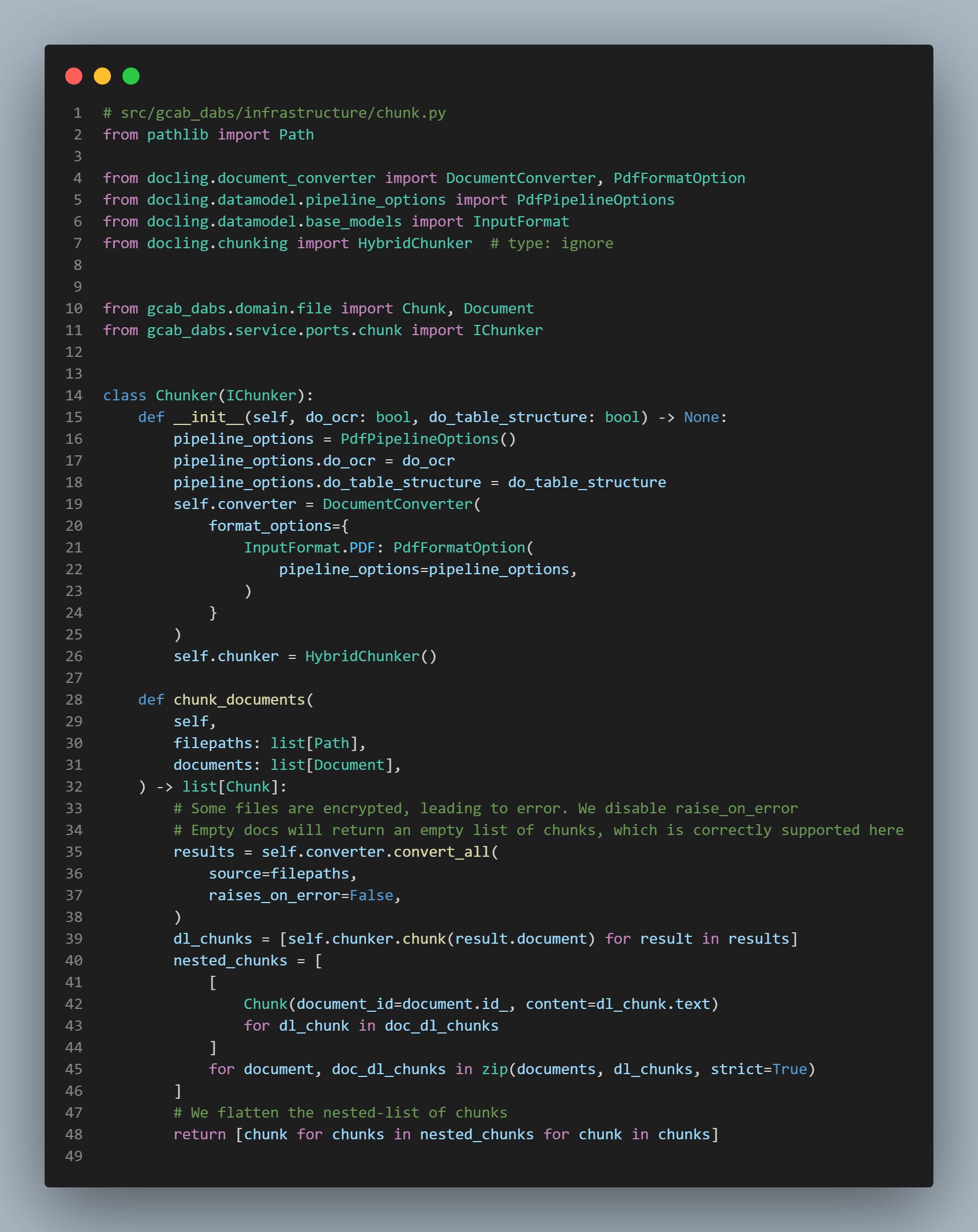
For our use case, we set do_ocr=False since pdf documents contains readable texts. Docling will use a pdf reader as back-end, such as pypdfium2 to extract the content. This will save up computation time during the processing of pdfs.
We also set do_table_structure=True to restructure tables from images using the TableFormer model, stored in the official Docling model repository.
The processing time varies from document to document, from <1s for docx files, to over 200s for some pptx and pdfs.
For the chunking part of the process, we leverage HybridChunker, a module already developed by Docling to group chunks based on their similarity. It uses open-source embeddding models from the sentence-transformers library.
Notes regarding Docling:
Docling is not free food for document processing. When deploying the pipeline in production, we faced many challenges, from hanging processes, to model not being pulled because of corporate firewall…
In the near future, we might explore other ways to parse documents. This will be the topic for another article.
Once each document content is extracted then chunked, it is embedded using openai embedding models. We end up with 3 entities: Document (as initially introduced), Chunk, and Embedding.
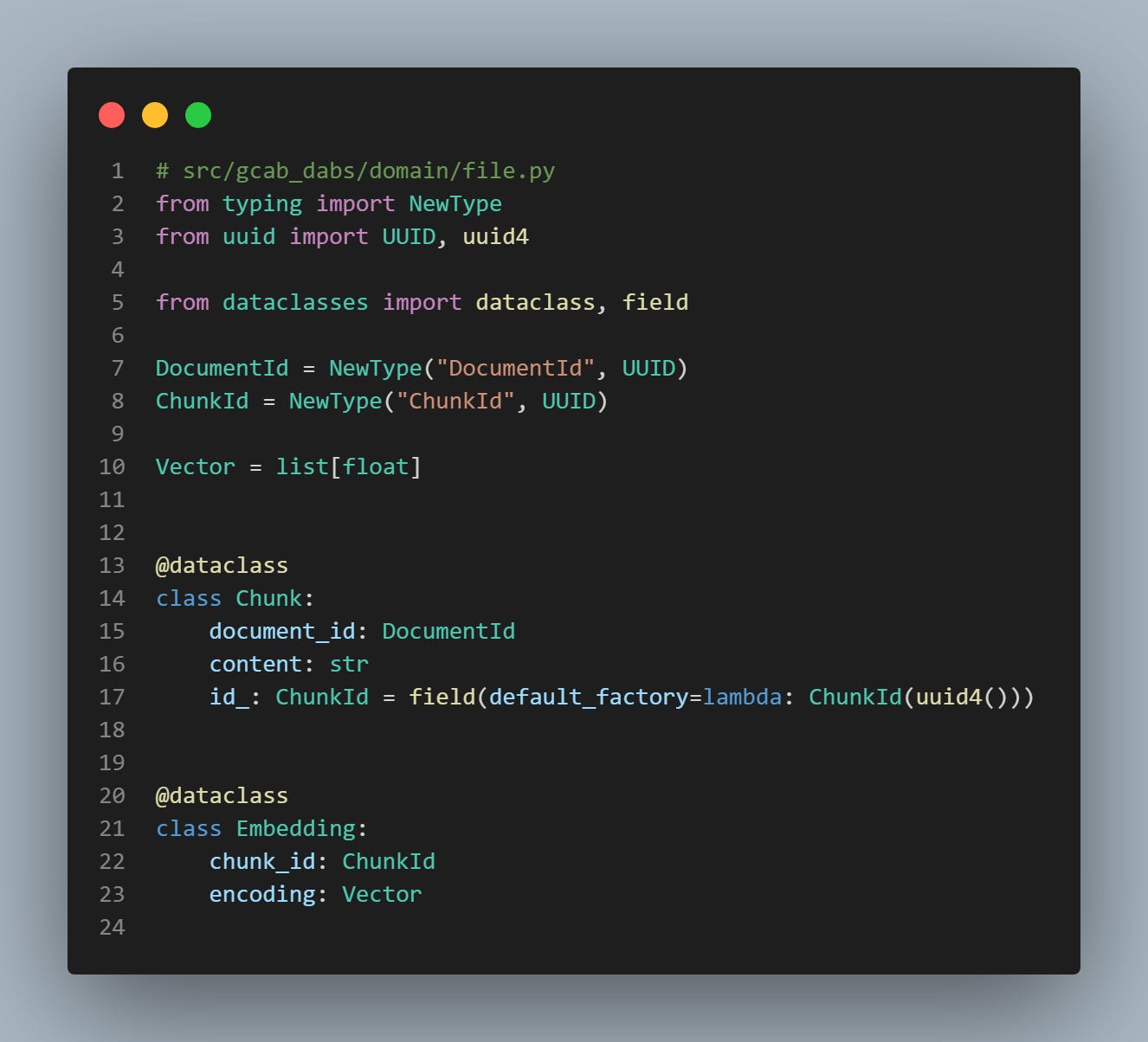
As you can see, each chunk is unique and characterized by chunk_id. It is now time to store each of those entities into their respective HanaDB tables. Additionally, we also index the filenames using the same embedding model for later retrieval step.
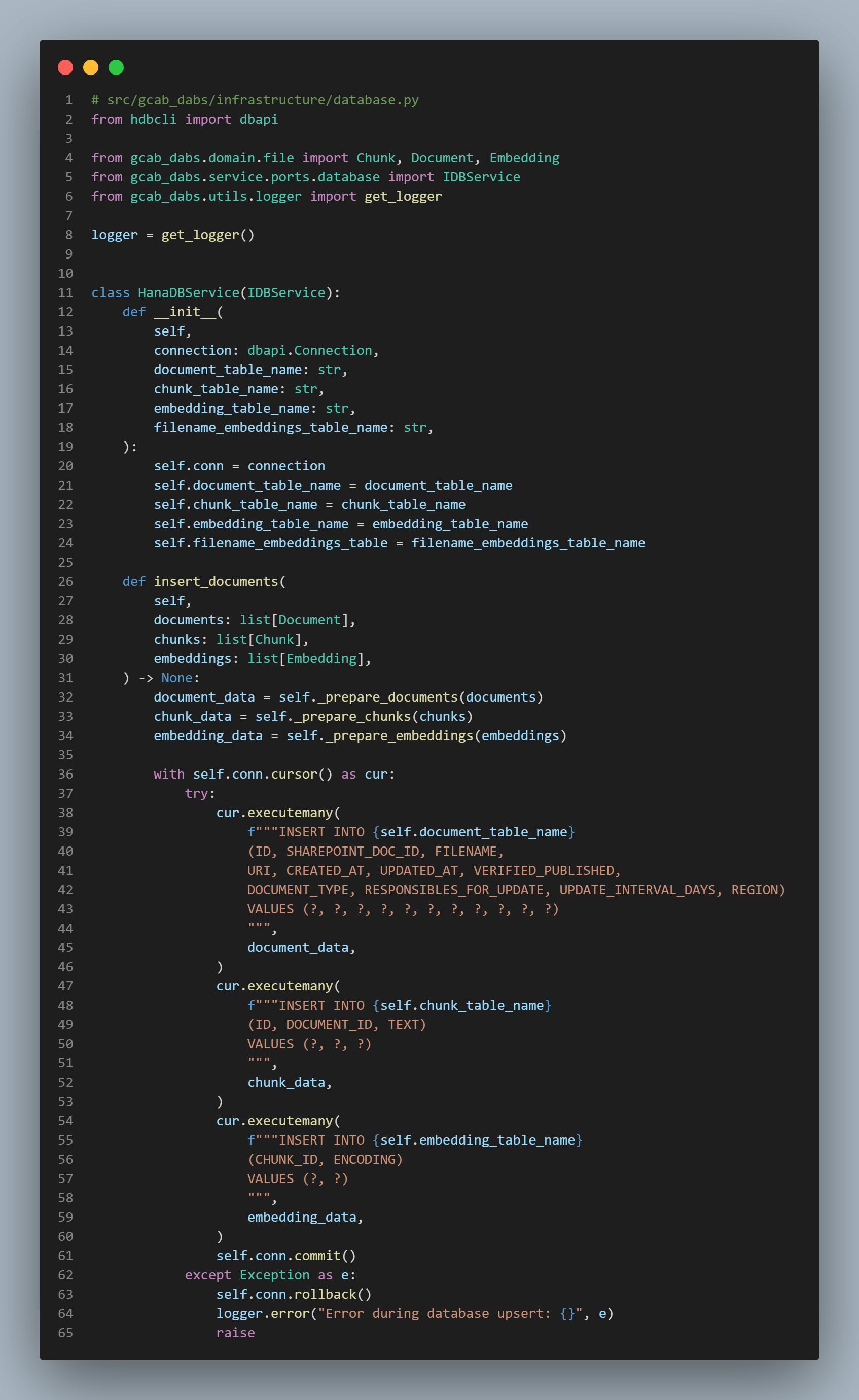
Once the data stored in the database, the process ends with a success message!
Deploy the pipeline
We deploy the pipeline using Databricks Asset Bundles, a modern approach that define the infrastructure as code. The pipeline is splitted into 2 steps, and scheduled every day at 8:30 AM, making the index fresh for retrieval.
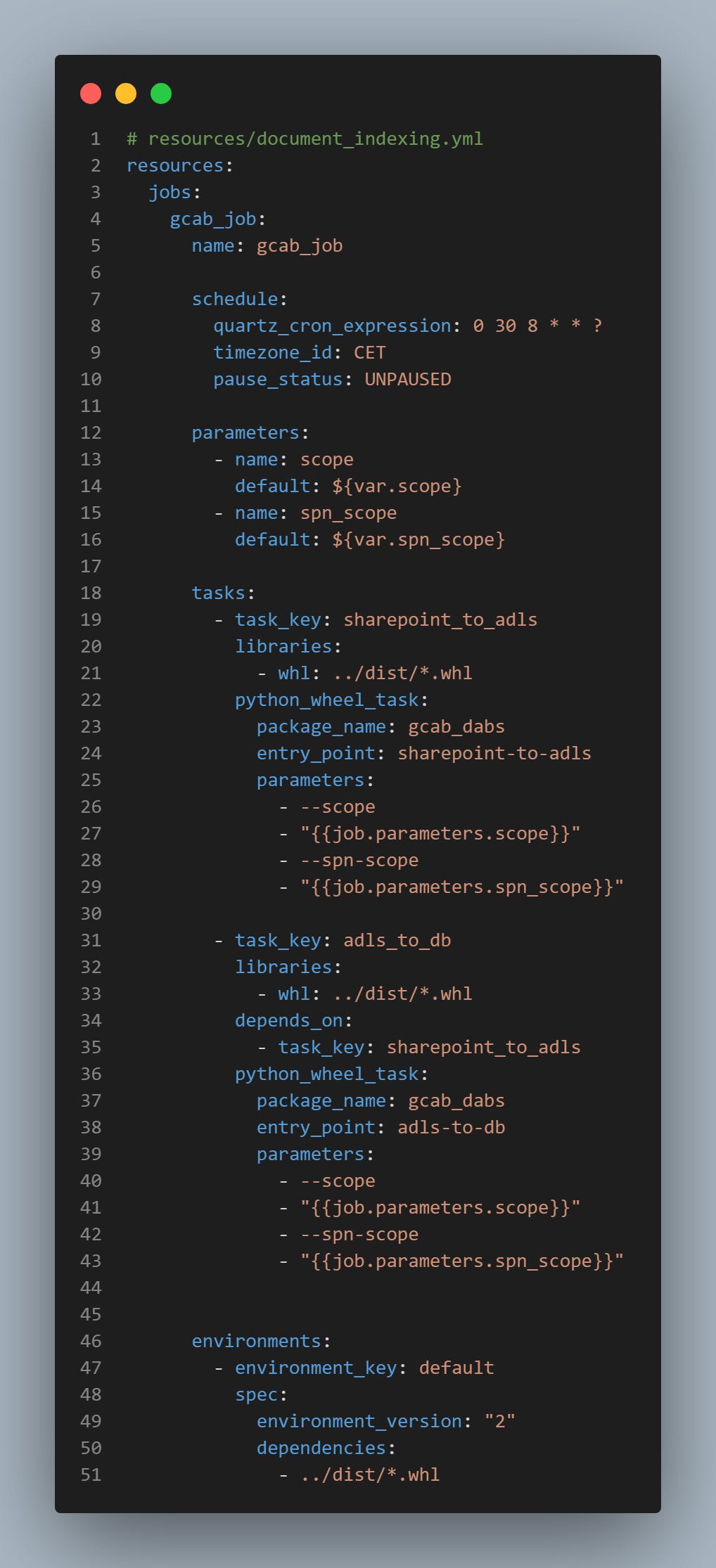
Learn about using Databricks Asset Bundles in my previous article:
Wrap up!
In this article, you learned how Sharepoint documents are indexed for our RAG system. The data remains fresh to provide the best experience for our users.
This setup is, in my opinion, the fundamental for any production-ready RAG. In other words, which doesn’t live in notebooks.
In the next article, I’ll introduce the Information Retrieval process we implemented to feed the LLM with relevant information.
Stay tuned!
If you liked this article, leave a like and subscribe to the Newsletter. Also, feel free to leave a comment about your process you implemented in your company as well!